
Why Your Smart Lock Will Not Open
A smart lock not opening is usually linked to weak batteries, an access issue, lost app communication, or pressure on the deadbolt. First check what still responds—the keypad, fingerprint reader, motor, or app—to quickly narrow down the cause.
Quick check: replace the batteries, try another authorized access method, and test the lock with the door open. If it works open but not closed, door or strike-plate alignment is the likely problem.
Start With the Symptom, Not the Reset Button
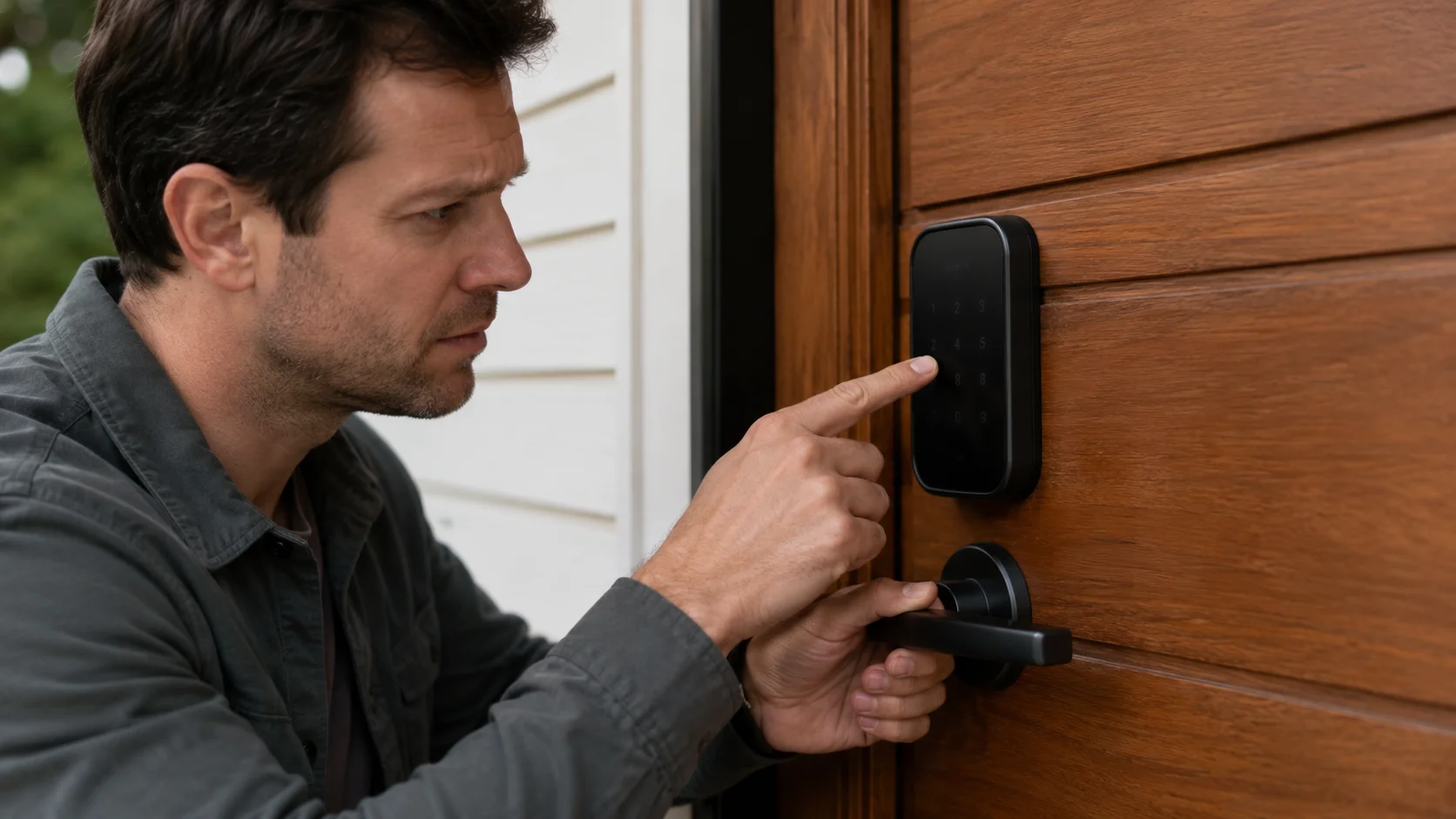
Identify what the lock still does—lights, sounds, access recognition, motor movement, or operation with the door open. That single observation usually narrows the problem faster than changing settings at random.
Smart Lock Not Working? Match the Symptom First
People describe the same failure in different ways: smart lock not working, smart lock not unlocking, smart door lock not opening, digital door lock not opening, electronic door lock not opening, or simply “my smart lock won’t open.” The wording matters less than the behavior you can see or hear. This smart door lock troubleshooting guide separates those symptoms into power, credential, connectivity, and mechanical causes.
| What you notice | Most likely cause | First safe check |
|---|---|---|
| No lights, tones, or keypad response | Smart lock battery dead, poor battery contacts, incorrect battery direction, or no power | Use fresh manufacturer-recommended batteries and inspect the battery compartment |
| PIN is rejected | Incorrect PIN code, expired code, deleted user, disabled access, or temporary lockout | Wait for the lockout period and confirm the active code in the administrator account |
| Fingerprint fails but PIN works | Dirty biometric sensor, wet finger, poor enrollment, or damaged fingerprint reader | Clean the sensor gently, dry your finger, and use another enrolled finger |
| App fails but local access works | Bluetooth connection, Wi-Fi connection, gateway, app permission, or account issue | Move close to the lock, enable required phone permissions, and test Bluetooth access |
| Credential is accepted but bolt does not retract | Door pressure, jammed deadbolt, motor resistance, incorrect calibration, or misalignment | Push or pull the door gently and test the lock with the door open |
| Lock works open but not closed | Door frame movement, latch bolt interference, or smart lock strike plate alignment | Check whether the bolt enters the strike plate without rubbing |
| Remote access fails away from home | Smart lock offline, gateway disconnected, weak Wi-Fi, or cloud service issue | Confirm local unlocking first, then check gateway power and internet status |
| Grinding, repeated beeps, or repeated motor attempts | Smart lock deadbolt jammed, overtightened fitting, low battery, or internal mechanical resistance | Stop repeated attempts and avoid forcing the handle or bolt |
Do not force the door: repeated motor attempts against a jammed bolt can drain the batteries and may damage gears or the clutch. Use only authorized access methods, follow the manual for your exact model, and contact the property owner or building management when required.
Five Safe Checks Before You Reset Anything
Good smart lock troubleshooting starts with the least disruptive steps. A reset can erase fingerprints, PIN codes, RFID cards, app pairing, user permissions, and other smart lock access settings, so it should not be the first reaction when a smart lock stopped working.
1. Try another authorized access method
Use an enrolled PIN, fingerprint, RFID card, mobile application, smart lock mechanical key, or another backup access method supported by the model.
2. Listen and look for feedback
Note whether the lock lights up, accepts the access credentials, sounds a low-battery warning, activates the motor, or displays an error.
3. Remove pressure from the bolt
Gently push or pull the door while unlocking. Door pressure affecting smart lock movement is common when the door, hinges, seals, or frame shift.
4. Test with the door open
If the door lock works when the door is open but fails after closing, the electronic system may be fine and the problem is probably mechanical alignment.
5. Check the model manual
Emergency power, reboot, recalibration, and reset procedures differ between brands. Use only the sequence specified for your model.
Check Battery Power, PIN Access, and Fingerprint Recognition
Start with the parts that fail most often and are easiest to verify safely. Power, credentials, and biometric recognition can usually be tested without dismantling the lock.
Check the Battery, Power, and Battery Contacts
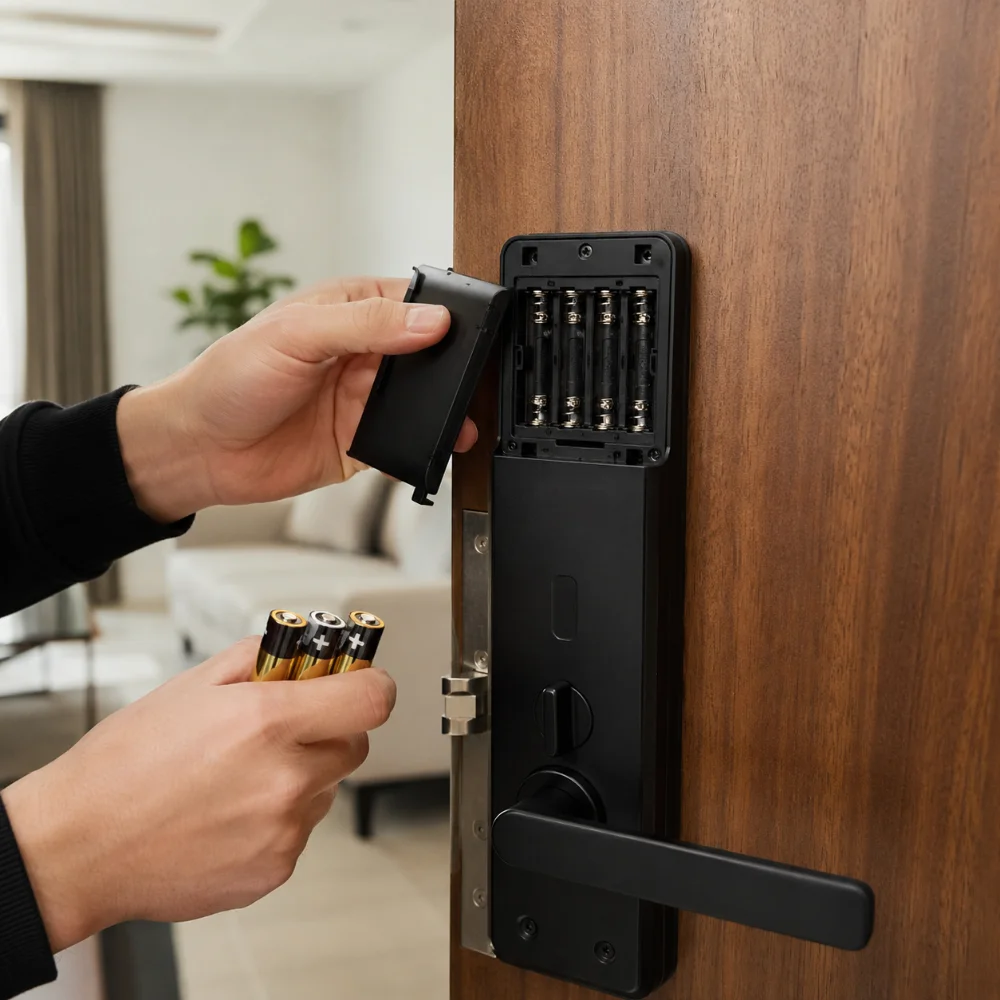
If the smart lock is not responding, “smart lock keypad not lighting up” describes the main symptom, or the smart lock has no power, start with the batteries. A smart lock low battery warning may appear as a red light, voice prompt, app alert, slower motor, dim keypad, or repeated beeping. Some locks continue working for a short period after the first warning, while others become unreliable as voltage drops.
A smart lock stopped working after battery change may have a loose battery contact, an incorrectly inserted cell, incompatible rechargeable batteries, a displaced cable, or a lock that needs a simple reboot. Remove one battery, wait briefly, reinstall it, and test again only if the manufacturer permits this reboot method.
Smart lock battery replacement tip: use the battery chemistry and quantity recommended by the manufacturer. Clean smart lock battery contacts with a dry soft material only; do not pour liquid into the battery compartment or scrape the terminals aggressively.
Why the PIN Code or Keypad May Not Work
A smart lock PIN not working does not always indicate a hardware fault. Users may describe the same issue as “digital lock password not working,” “smart lock keypad not responding,” “smart lock code not working,” or “keypad door lock not opening.” The code may be wrong, expired, outside its scheduled time, disabled by the administrator, or temporarily blocked after repeated failed attempts.
Confirm the Exact Code Process
Wake the keypad correctly, enter the full access code, and press the required confirmation key. Check whether scramble-code or anti-peep entry changes how the digits are entered.
Wait for Temporary Lockout
A smart lock temporary lockout protects against repeated guessing. Stop entering codes, wait for the model-specific delay to finish, and then try the verified code once.
Check the Administrator Account
A smart lock access code problem can occur when the user schedule ended, the app records a “smart lock user code deleted” event, or the smart lock administrator code and permissions were changed.
Do not keep guessing: repeated incorrect PIN code attempts can extend the lockout or trigger an alarm. Use another authorized method and review the user list from the owner or administrator account.
Fingerprint Lock Not Opening or Recognizing Your Finger
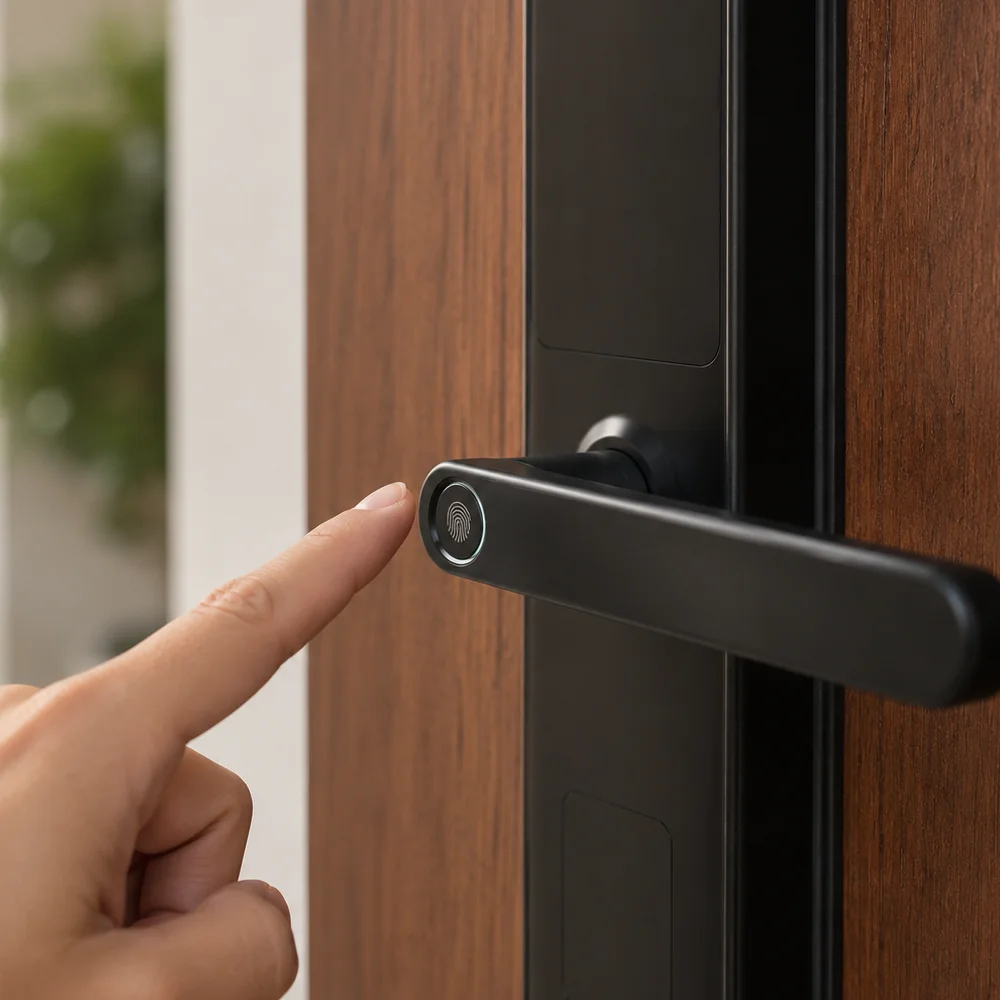
When a fingerprint lock is not opening but PIN or card access still works, focus on the sensor and enrollment. A fingerprint door lock not working may be caused by a dirty fingerprint sensor, moisture, very dry skin, an injured fingertip, poor finger placement, or an incomplete original scan. In bright sun or dusty entrances, the biometric sensor may also need gentle cleaning more often.
Try These Simple Checks
- Wipe the fingerprint reader with a clean, soft, dry cloth
- Dry your finger and place the full enrolled area on the sensor
- Try another registered finger or authorized PIN
- Confirm that the user profile is still active
- Re-register fingerprint on smart lock using several natural angles
Look Beyond the Sensor
- Smart lock fingerprint not recognized but other access works: likely enrollment or sensor issue
- Fingerprint sensor not responding at all: check power first
- Fingerprint accepted but door not opening: check the bolt, motor, and alignment
- Biometric door lock not opening through any method: treat it as a wider power or mechanical fault
For buyers comparing replacement options, JustCare’s fingerprint door locks in the UAE page explains common access features. Fingerprint door lock troubleshooting should still follow the manufacturer’s manual because enrollment limits, sensor type, and reset steps vary by model.
Useful distinction: a fingerprint access failure before authentication points toward the reader, enrollment, or user permissions. A successful fingerprint followed by no movement points toward the motor mechanism, deadbolt, calibration, or door alignment.
Separate App Problems From Lock Hardware Problems
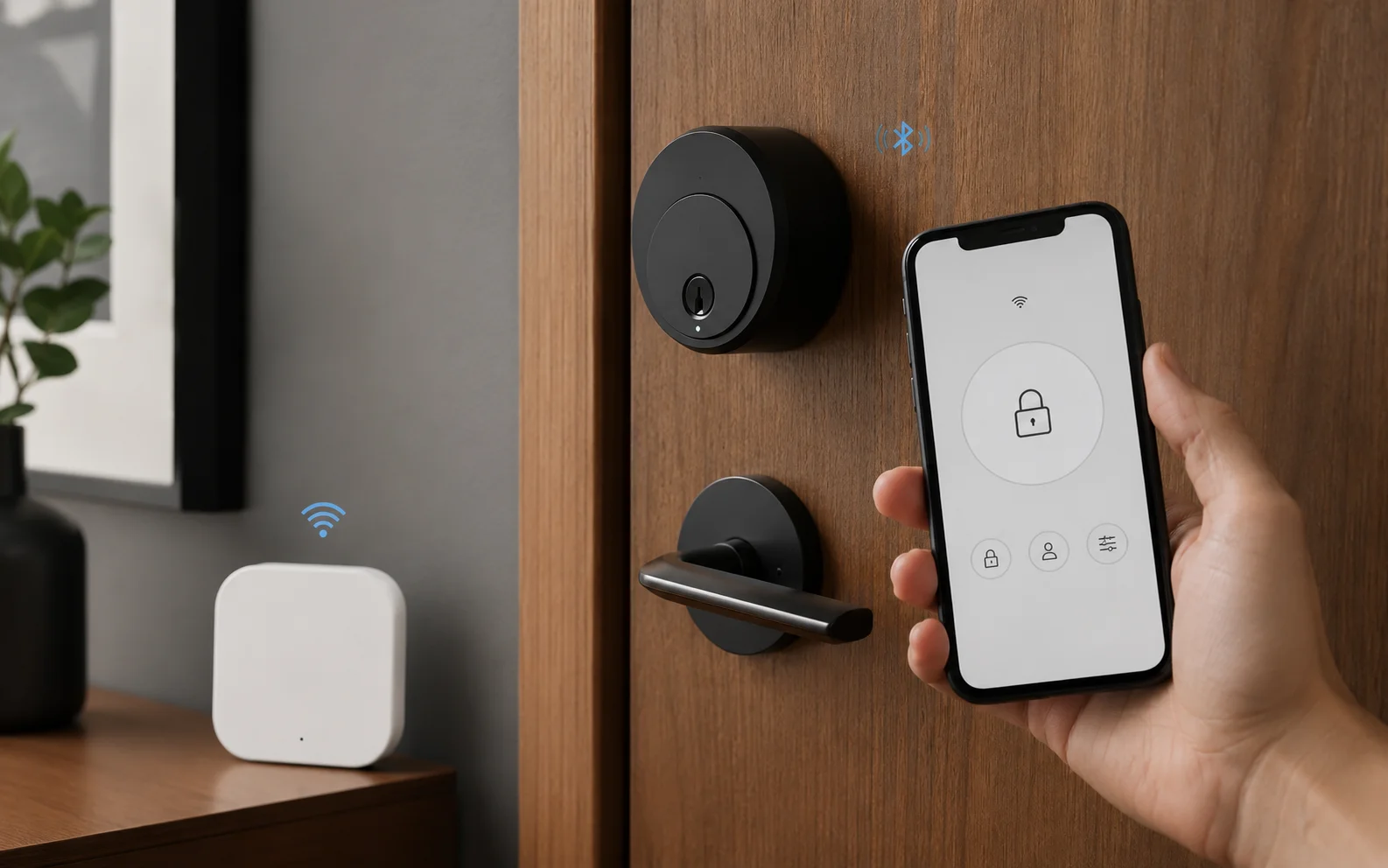
If PIN or fingerprint access still works, the lock itself may be fine. Test local Bluetooth access before troubleshooting Wi-Fi, gateways, permissions, cloud services, or remote unlocking.
Smart Lock App, Bluetooth, Wi-Fi, or Gateway Problems
If local PIN or fingerprint access works and “smart lock app not working” is the only issue, the physical lock may be fine. When “smart lock app not unlocking door” matches the problem, test local access before changing the lock hardware. The issue may be a smart lock app connection problem, disabled phone permissions, an outdated smart lock app, a lost Bluetooth connection, a disconnected Wi-Fi gateway for smart lock access, or an account that no longer has permission to control the device.
Move close and test Bluetooth
If “smart lock not connecting to Bluetooth” or “smart lock Bluetooth not working” matches the problem, stand near the door, enable Bluetooth and location permissions where required, close and reopen the mobile application, and test again.
Check the correct home and user permissions
Confirm that you are signed into the correct account, property, and lock. Review smart lock permissions, guest schedules, owner access, and whether the device was removed from the administrator account.
Check Wi-Fi and gateway status
If “smart lock not connecting to Wi-Fi” matches the problem, the smart lock is offline, “smart lock gateway not working” is reported, or “remote unlocking not working” is the only failure, check gateway power, router internet, Wi-Fi band compatibility, signal strength, and the gateway-to-lock distance.
Update before re-pairing
Install the latest smart lock app update and review whether a smart lock firmware update is available. Use the manufacturer’s reconnect process—often described as “reconnect smart lock app” or “re-pair smart lock”—only after confirming the owner credentials and setup instructions.
A smart lock pairing problem is different from a jammed door. Bluetooth or gateway failure can stop app control while fingerprint, PIN, card, and mechanical access continue working. JustCare’s app-controlled door locks guide explains the difference between nearby Bluetooth use and remote Wi-Fi or gateway-based access.
TTLock users: a compatible TTLock G2 gateway supports remote features for suitable Bluetooth locks, but it will not fix a jammed latch, misaligned strike plate, or damaged motor.
Test the Deadbolt, Mortise, Handle, and Door Alignment
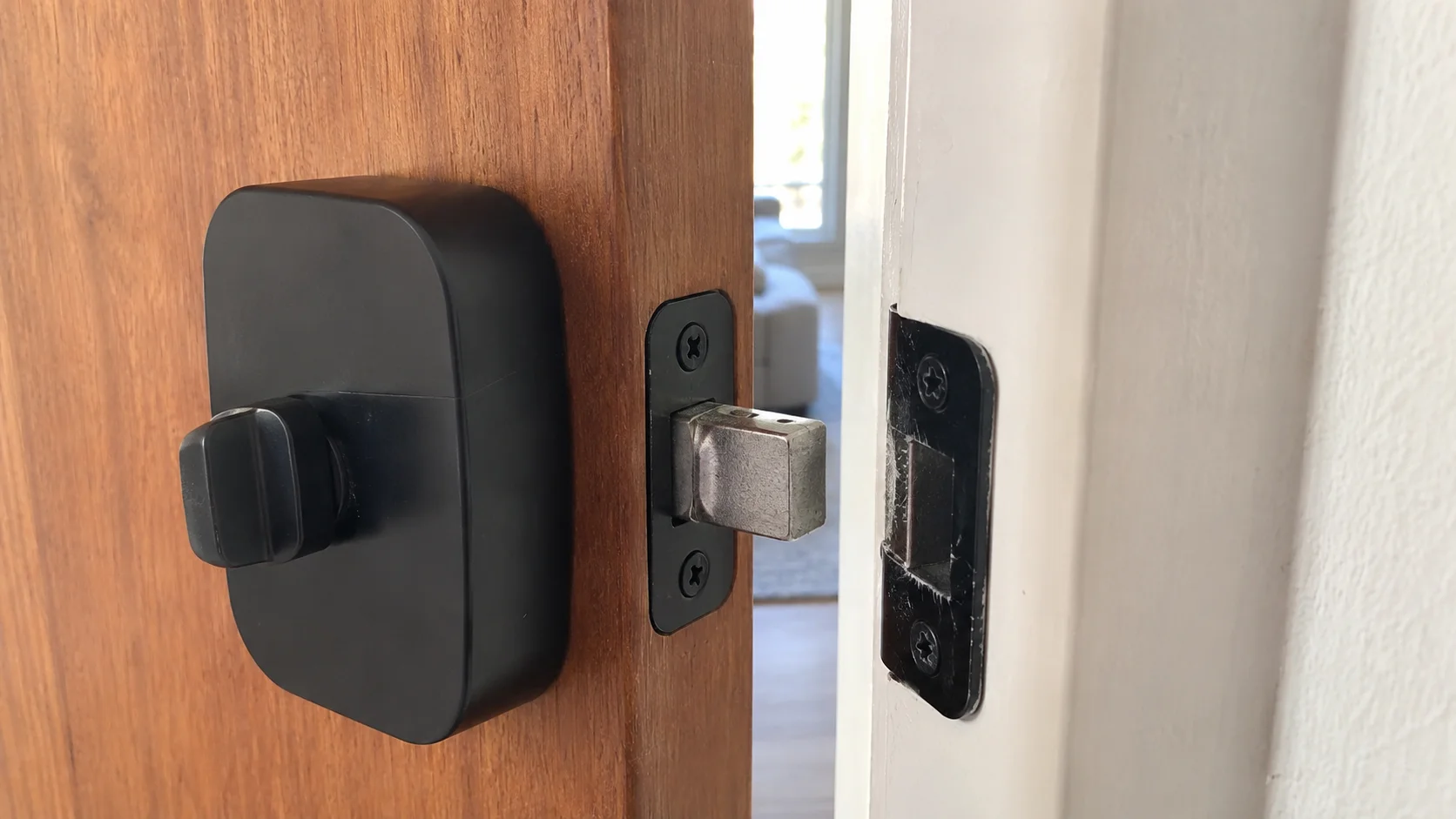
A credential can be accepted while the door remains locked. Testing with the door open reveals whether the failure is electronic or caused by bolt pressure, strike-plate alignment, calibration, or incorrect fitting.
Deadbolt, Mortise, Handle, and Door Alignment Problems
When the lock recognizes a credential but the door stays closed, look at the moving parts. A smart lock deadbolt jammed against the strike plate, a smart lock bolt not retracting fully, a latch bolt rubbing the door frame, or a mortise lock fitted under tension can make a healthy electronic system appear faulty.
Lock Works Open but Not Closed
If “smart lock not working when door is closed” describes the symptom, test it with the door open. When the door lock works when door is open but fails after closing, alignment is the strongest clue. A misaligned smart lock may need hinge adjustment, strike plate repositioning, latch alignment, or correction of the lock body position.
Motor Runs but Door Stays Locked
A smart lock motor running but not opening may indicate bolt resistance, an incorrect handing setting, clutch engagement issue, loose internal connection, or a lock cylinder and spindle problem.
Motor Does Not Turn
A smart lock motor not turning may come from low voltage, a damaged cable, motor failure, firmware state, or internal obstruction. A “smart lock making grinding noise” symptom is a reason to stop repeated attempts after door pressure is removed.
A “smart lock handle not opening door” problem can also result from an incorrectly positioned spindle, handle direction, cable, clutch, or mortise component. JustCare’s guide on how to install a smart lock and check door compatibility explains why door thickness, handle direction, mortise size, lock body space, and frame alignment matter.
When alignment is the cause: repeated battery changes, app resets, or new fingerprints will not solve the problem. A professional smart lock alignment service or smart lock fitting service may be needed to correct the physical installation.
Check Lock Modes, Calibration, and Configuration
A smart lock setup problem can appear after battery replacement, app migration, a change of administrator, door work, or an incomplete installation. Review the smart lock configuration before assuming the hardware is defective.
Privacy, Vacation, or Passage Mode
A privacy mode smart lock or vacation mode smart lock may block selected outside access methods. Passage mode smart lock settings can keep a door unlocked instead of operating normally. Check the active mode from inside or through the owner app.
Auto-Lock and Door Sensor
Incorrect auto-lock settings, a misaligned door sensor, or an incorrect opening-direction setting can affect locking behavior and status reporting.
Calibration or Handing
A smart lock calibration problem can make the motor stop early or turn the wrong direction. If the smart lock needs recalibration, use the manufacturer’s process with the door open.
To recalibrate smart lock movement, first confirm that the bolt moves freely by hand, the strike plate is not creating resistance, and the door direction is correct. Recalibrate the smart lock only through the approved app or keypad sequence. If calibration repeatedly fails, investigate alignment or installation before repeating the process.
Use Reset and Backup Access Only When Appropriate
A factory reset can remove users, fingerprints, PINs, cards, and app pairing. Confirm the exact model instructions and a valid backup entry method before taking irreversible steps.
Should You Reset the Smart Lock?
People searching how to reset a smart lock often expect it to solve every smart lock problem. A reboot may clear a temporary software state, but a smart lock factory reset is much more disruptive. Depending on the model, it can erase the master PIN, fingerprints, cards, mobile app connection, access code records, administrator account, schedules, and integrations.
Try a Reboot First
- Confirm that you can still enter through another authorized method
- Replace weak batteries before troubleshooting software
- Use the model-specific soft reboot or power-cycle process
- Test local PIN, fingerprint, and manual operation again
Factory Reset Only When Necessary
- You are the owner or authorized administrator
- You have the manual, master setup steps, and backup entry
- You understand that all users may need to be re-added
- The fault is configuration-related, not a jammed door or damaged part
Important: resetting does not repair a bent deadbolt, damaged mortise, loose spindle, misaligned strike plate, broken cable, corroded terminals, or failed motor. It can also make recovery harder when the owner credentials are unavailable.
How to Open a Smart Lock With a Dead Battery
The correct way to open smart lock with dead battery power depends on the model. Common options include a smart lock backup key, smart lock mechanical key, an external smart lock emergency charging port, removable battery access, or another alternative unlocking method. These features are not universal, so check the manual before attempting smart lock emergency unlock procedures.
A power bank for smart lock use normally provides temporary power; it does not charge ordinary AA batteries inside the lock. Some models use a USB emergency power port, while others use external battery terminals. Do not connect an unsupported voltage or force a connector into the smart lock emergency charging port.
No supported backup method? Contact the lock manufacturer, property owner, building management, or a qualified local professional. JustCare does not provide emergency door unlocking, key duplication, car locksmith, or traditional lock repair services.
Know When the Problem Needs Installation or Setup Support
Stop troubleshooting when the lock grinds, repeatedly stalls, has damaged wiring, works only with the door open, or loses access settings after every power cycle. Those symptoms usually need a closer fitting, alignment, or configuration check.
When Professional Smart Lock Support Is Needed
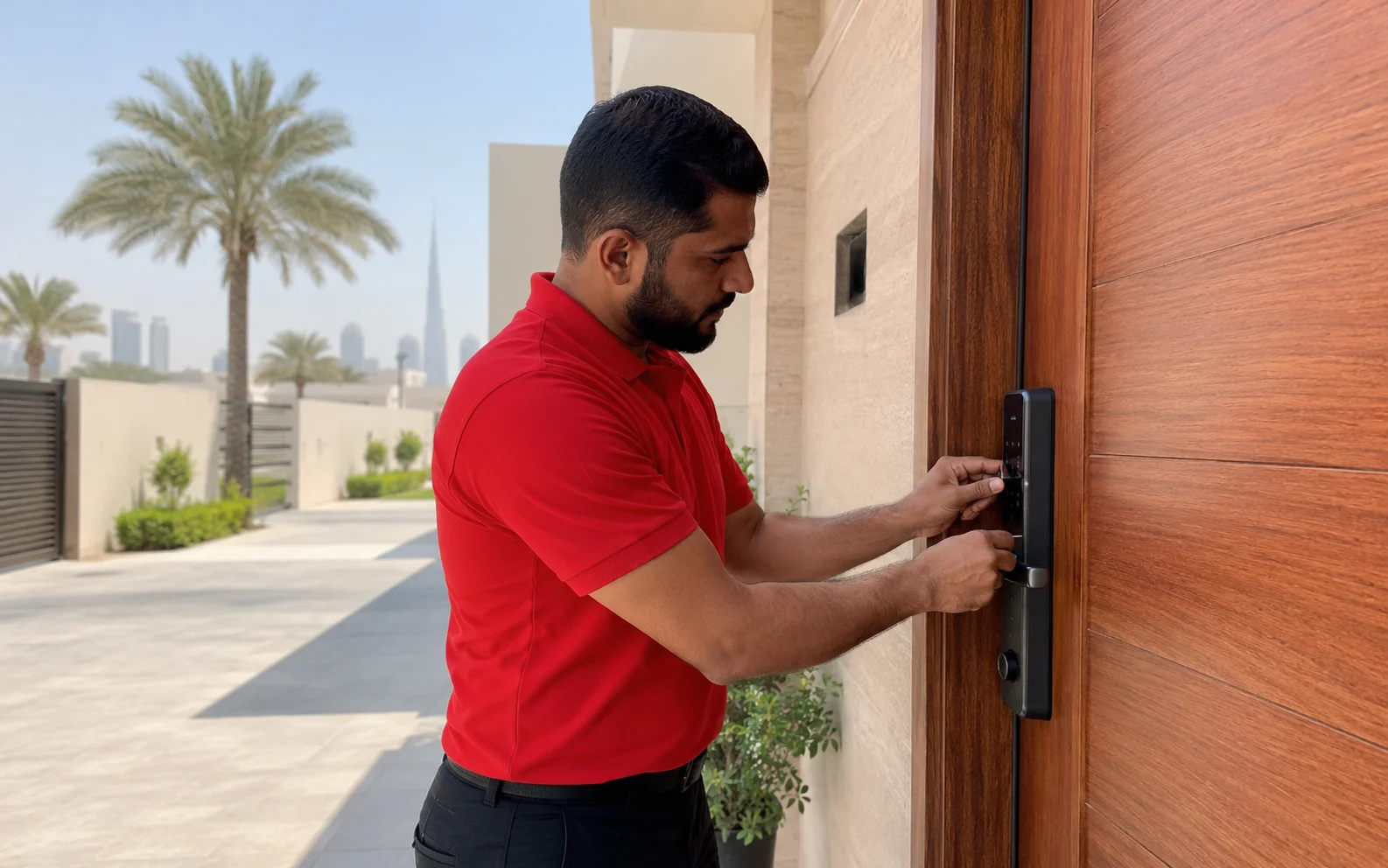
Simple battery, credential, sensor, or app checks can solve many issues. Professional help is more appropriate when the bolt binds against the frame, the lock body is loose, the motor grinds, a cable is damaged, the mortise does not match the door, calibration repeatedly fails, or the lock was never fitted correctly.
Continue Basic Troubleshooting When
- The keypad and motor respond normally
- Another access method still opens the door
- The issue started after a known app, battery, or user change
- No grinding, looseness, or physical obstruction is present
Arrange a Professional Check When
- The lock works open but not after the door closes
- The motor repeatedly strains against the deadbolt
- The handle, spindle, latch, or mortise feels loose
- Door cutting, strike adjustment, rewiring, or refitting is required
- The lock model is unsuitable for the door thickness or profile
JustCare provides a smart lock installation Dubai service, including door compatibility checks, fitting, alignment, app setup guidance, fingerprint and PIN configuration, and final testing. This professional smart lock installation option supports customers who need a complete smart door lock installation service rather than emergency unlocking. The broader smart locksmith in Dubai page explains the installation and setup scope available for apartments, villas, homes, offices, and rental properties.
For a new or replacement model, browse smart door locks in the UAE and confirm compatibility before purchase. A digital door lock installation Dubai request should include clear photos of the door front, inside, edge, existing lock, frame, and the new lock model.
Local service scope: smart lock troubleshooting Dubai support from JustCare is focused on installation, fitting, alignment, smart lock setup Dubai, smart lock configuration Dubai, app guidance, access setup, and final testing. For customers searching for “smart lock support Dubai,” JustCare can assist with those services—not emergency lockout entry or traditional locksmith repair.
How to Keep a Smart Lock Working Reliably
Preventive care is easier than dealing with a lockout. The aim is to protect battery power, reduce mechanical resistance, preserve the sensor, and keep access methods current.
Respond to Battery Warnings
Replace the full battery set when the low-battery alert appears. Keep the correct spare batteries and backup key in an accessible but secure place.
Watch for New Resistance
If the door begins rubbing, sagging, or needing a push to close, correct the alignment before the motor repeatedly forces the bolt.
Maintain More Than One Method
Keep at least two authorized access options active, such as fingerprint plus PIN, and review guest codes and user permissions regularly.
Clean Gently
Use a soft dry cloth on the keypad and fingerprint reader. Avoid abrasive cleaners, solvents, excessive water, and sharp tools.
Keep the App Current
Install approved app and firmware updates, keep owner credentials secure, and check gateway power after router or Wi-Fi changes.
Test With the Door Open and Closed
After setup, battery work, or door adjustment, test every access method and confirm that the bolt moves smoothly in both conditions.
Frequently Asked Questions About a Smart Lock Not Opening
These answers cover the most common battery, access, app, alignment, and reset questions without assuming that every smart lock model works the same way.
Why is my smart lock not opening?
The most common causes are weak or dead batteries, an invalid access credential, temporary lockout, a dirty fingerprint sensor, app or gateway disconnection, door pressure, strike plate misalignment, incorrect calibration, or a mechanical fault.
What should I do if my smart lock stops working?
Try another authorized access method, check the battery warning, remove pressure from the door, and test with the door open. Record any lights, sounds, or error messages before changing settings.
Why is my smart lock not responding?
A completely unresponsive lock usually points to battery power, battery terminals, a loose internal cable, or a frozen electronic state. Install fresh compatible batteries and follow the model-specific reboot process.
Can a smart lock stop working because of low batteries?
Yes. Low voltage can cause a dim keypad, slow motor, failed communication, repeated beeps, or incomplete bolt movement. Replace the complete battery set rather than mixing old and new cells.
Why does my smart lock work when the door is open but not closed?
The bolt or latch is probably rubbing the strike plate or door frame. Door sag, seal pressure, hinge movement, or incorrect fitting can prevent smooth extension and retraction.
Why is my fingerprint lock not recognizing my finger?
Clean and dry the sensor and finger, use the same natural angle used during enrollment, and try another registered finger. Re-enroll the fingerprint if the owner account allows it.
Why is my smart lock app not unlocking the door?
Check whether local access works first. Then confirm Bluetooth, location permission where required, account access, Wi-Fi, gateway power, app version, and the lock’s online status.
How do I open a smart lock with a dead battery?
Use the manufacturer-supported backup option, which may be a mechanical key, external 9V terminals, or a USB emergency power port. The available method depends on the model.
Should I factory reset my smart lock?
Only after basic checks fail and you have the owner credentials, backup entry, and setup instructions. A factory reset may erase every user, PIN, fingerprint, card, schedule, app pairing, and integration.
Why is my smart lock motor running but the door is not opening?
The deadbolt may be under pressure, the strike plate may be misaligned, calibration may be wrong, or the spindle, clutch, mortise, or internal motor connection may need inspection.
Can door misalignment stop a smart lock from opening?
Yes. Even a small change in hinge position, door swelling, frame alignment, or seal pressure can make the bolt bind and increase motor load.
When should I call a smart lock installer?
Arrange an installer when the lock works with the door open but not closed, the motor strains or grinds, the handle or lock body is loose, the door needs cutting or strike adjustment, or setup and calibration repeatedly fail.
How to open a smart lock safely without damaging it?
Use only an authorized PIN, fingerprint, card, owner app, backup key, or manufacturer-supported emergency power method. Do not pry the lock, drill the door, short battery terminals, or apply unsupported voltage.
How to fix a smart lock that keeps failing?
Identify whether the failure is power, access, connectivity, or mechanical. Replace weak batteries, correct user access, reconnect the app, and fix alignment before considering reset or replacement.
Need Smart Lock Installation or Setup Help in Dubai?
JustCare can assist when your issue involves door compatibility, lock fitting, strike plate alignment, app setup, fingerprint or PIN configuration, recalibration, replacement selection, or final testing. Share your lock model, clear door photos, a short video of the problem, and your Dubai location for the right guidance.